
← Back to blog8 min read
The three Claude Code settings I change on every fresh setup are default permission mode, the two push notification toggles, and the theme. All three live in the same place. Type /config inside a session and the settings screen opens in the terminal, with the whole list sitting right there in front of you. This post covers what each setting does, when to change it, and the one prerequisite that decides whether those push notifications ever reach your phone.
Key Takeaways
- Every setting below is reachable by typing
/configinside a Claude Code session. You never have to opensettings.jsonto change any of them.- Default permission mode set to Auto means new sessions start in auto mode. Auto mode still pauses on some actions, so it does not mean Claude stops asking.
- Push notifications need the Claude mobile app installed and signed in to the same account. The two toggles then behave differently: Push when actions required delivered for me with no Remote Control session running, while Push when Claude decides is documented as needing one connected.
- I did not turn on auto mode when I started. I ran manual approvals until I trusted the tool, then switched.
- Theme sets the color theme for the interface and ships on dark. I run light mode.
Claude Code changes quickly, so treat the exact row labels below as current at the time of writing. The behavior each one controls has been stable, but the screen gets rearranged.
What Are Claude Code Settings, and Where Do You Change Them?
Claude Code settings are the per user and per project options that control how Claude Code behaves in your terminal, covering permissions, notifications, appearance, and model choice. The fastest way to reach them is the /config command, which opens an interactive settings screen inside your current session. You arrow up and down the list, change a value, and it saves as you go.
This matters because most writing about Claude Code settings starts from settings.json and the four or five places that file can live. That is the right level of detail once you are managing settings across projects and machines. It is the wrong place to start on day one. For the three changes below, /config is the whole interface.
| Setting | What it changes | Why it is on this list |
|---|---|---|
| Default permission mode | Which permission mode new sessions start in | Removes a repeated manual step once you trust the tool |
| Push when actions required | Pings your phone when Claude is blocked and needs you | Lets you leave the terminal without losing the thread |
| Push when Claude decides | Pings your phone when Claude judges you should know | Same, for work that finishes while you are elsewhere |
Setting 1: Default Permission Mode
Claude Code permissions decide how often Claude stops to ask before it runs a command, edits a file, or uses a tool. Default permission mode sets which of those modes a new session opens in, so it is the difference between choosing your mode every time you start work and choosing it once.
To change it: type /config, find the row labeled Default permission mode, and set it to Auto.
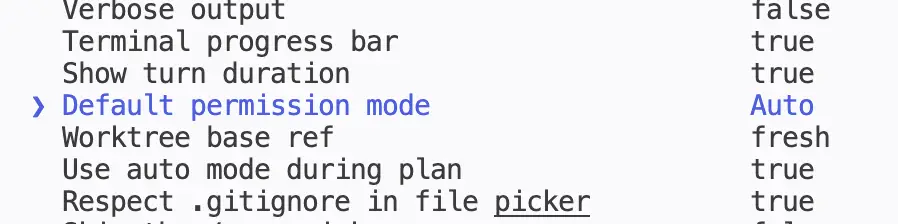
One thing gets misread about this setting more than anything else. Setting it to Auto does not mean Claude never asks you for anything again. It means your sessions start in auto mode instead of you switching into it each time. Auto mode still stops.
What still stops it is a separate classifier model that reviews actions before they run. Anthropic's docs describe it blocking anything that escalates beyond your request, targets unrecognized infrastructure, or appears driven by hostile content Claude read. Removals aimed at your filesystem root or home directory skip the classifier and prompt you directly, and explicit ask rules still force a prompt.
Two details worth knowing before you turn this on. If the classifier blocks an action three times in a row, or twenty times in total, auto mode pauses itself and Claude Code goes back to prompting you. And the classifier is a model call like any other, so it counts toward your token usage. Auto mode removes the routine interruptions and keeps the ones that matter, at a small running cost.
One availability note: auto mode needs a recent enough model behind it, and it is not offered on the older Sonnet, Opus, and Haiku versions. If the row is missing or the Auto value will not stick, that is usually why.
I would not put this first on a brand new setup, and I did not. More on that below.
Setting 2: Both Push Notification Toggles
Claude Code notifications can reach your phone, which is the setting that changes how you work rather than how the terminal looks. There are two separate toggles and I turn on both.
The setup comes first, because this is where most people conclude the feature is broken. Turning on the toggles is the last step, not the first. Anthropic's setup for mobile push runs in this order:
- Install the Claude mobile app on your phone.
- Sign in with the same account you use for Claude Code.
- Allow notifications for the app when your phone asks.
- Open
/configand turn on the two toggles below.
Skip the first three and you can flip both toggles to true, get nothing, and reasonably assume the setting is broken. Both toggles ship off by default, and both need Claude Code v2.1.119 or later.
The two toggles do not behave the same way past this point, and the documentation only covers one of them. Anthropic's settings reference defines Push when Claude decides as taking effect "when Remote Control is connected". It says nothing either way about Push when actions required, and when I tested that one on its own it delivered with no Remote Control session running at all.
That gives you a useful way to read the symptom. If permission prompts reach your phone but nothing arrives when a long task finishes by itself, the missing piece is Remote Control rather than the setting.
Remote Control is a separate feature, not a notification option. It links a session running on your machine to claude.ai/code or the mobile app through a URL, so you can pick the work up from your phone or another browser. It is in research preview at the time of writing, and on Team and Enterprise plans an owner has to enable it before it appears for you at all.
| Toggle | Fires when | Turn it on if |
|---|---|---|
| Push when actions required | A permission prompt or question is waiting on your input | You want to be pulled back the moment work stalls |
| Push when Claude decides | Claude judges you should know, like a long task finishing or a decision it needs | You want to know when work completes while you are elsewhere |
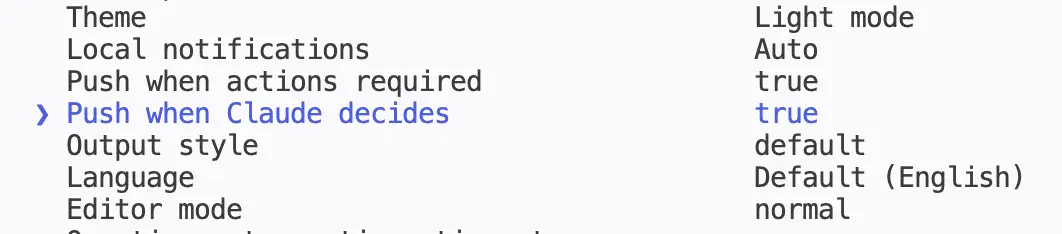
One behavior worth knowing so the notifications do not feel noisy: Claude Code skips mobile push while you are typing in or focused on the connected terminal. It only reaches for your phone once you have actually stepped away, which is the only time you want it to.
Setting 3: Theme
Theme sets the color theme for the Claude Code interface. It ships on dark, and I set mine to light mode because I read better on a light background. I will take the criticism for it.
Type /config, find Theme, and pick the one you want. There are seven values in the list, including higher contrast options and variants that defer to your terminal's own colors.

I am including it anyway, and not as filler. A tool you are going to sit in front of for hours should look the way you want it to look. Two of these settings change what the tool does. This one changes whether you enjoy using it, and that turns out to matter for whether you keep using it. The spinner verbs are the other purely cosmetic one worth knowing about, for the same reason.
The same instinct covers how Claude writes back to you, which is another row in this list. If the answers come back longer than you want to read, output styles let you ask for shorter ones without changing the model.
What Actually Changed for Me
I did not start on auto mode, and I would not tell anyone to. When I first started with Claude Code I was cautious, I approved things manually, and I watched what it did. Once I got comfortable, turning auto mode on by default made my life a lot easier. The setting did not earn its place until I had enough sessions behind me to know what I was approving.
The push notifications earn their place differently. I usually have six or seven sessions running in parallel, and the thing I lose in that setup is not quality, it is attention. Notifications bring me back to whichever session needs me. Without them, the cost of running several at once is that some of them sit finished, or stuck, while I am looking at a different window. That is separate from actually getting two of those sessions talking to each other, which needs a different setup again.
That is the honest order to adopt these in. Notifications help immediately, whatever your experience level. Auto mode is worth changing when you have stopped reading every prompt carefully anyway, because at that point the prompt is not protecting you.
Where to Go After These Three
These are the settings I change before doing anything else, which also makes them the shallow end. Once the basics are set, the next question is usually what to add to Claude Code rather than what to configure.
If you want Claude to name the extensions your project actually needs instead of guessing from a list of hundreds, the automation recommender reads your codebase and hands back a short list with a reason for each pick.
Frequently Asked Questions
Why am I not getting Claude Code push notifications?
Start with the phone. The Claude mobile app has to be installed, signed in to the same account you use for Claude Code, and allowed to send notifications. Both toggles also ship off by default and need Claude Code v2.1.119 or later. If permission prompts reach you but nothing arrives when a task finishes on its own, that gap is the difference between the two settings: Push when actions required delivered for me with no Remote Control session running, while Anthropic's settings reference names a Remote Control connection as the condition for Push when Claude decides. Claude Code also skips push while you are focused on the connected terminal, so test it by stepping away.
Does auto mode mean Claude Code stops asking for permission?
No. Setting default permission mode to Auto means new sessions start in auto mode, not that prompts disappear. A separate classifier model reviews actions before they run and still blocks escalation beyond your request, unrecognized infrastructure, and catastrophic deletions. Explicit ask rules still force a prompt. Auto mode removes routine approvals and keeps the ones worth stopping for.
Can I change Claude Code settings without editing settings.json?
Yes. Type /config inside any Claude Code session and the settings screen opens in the terminal. You can change permission mode, notifications, theme, and the rest from that list without opening a file. Editing settings.json directly is useful when you want settings shared across a project or checked into a repository, which is a later problem than your first setup.
One trap if you do go to the file later. Auto mode is ignored when defaultMode is set in project or local settings, so a repository cannot hand itself auto mode. It has to go in your own ~/.claude/settings.json. You get no error either way, just sessions that quietly keep starting in manual.
Is it safe to leave Claude Code in auto mode?
That depends on how much you have watched it work. Auto mode keeps a classifier reviewing actions before they run, so it is not unsupervised. I still ran manual approvals for my first stretch with Claude Code and switched only once I was comfortable. If you are reading every prompt closely and learning from them, keep doing that.
How do I switch Claude Code to light mode?
Type /config, find the Theme row, and select light mode. The change applies immediately in your current session. Claude Code ships with the dark theme selected, and the Theme row carries seven values in total, including higher contrast options and variants that hand color choices back to your terminal.
The Two Minute Version
Three Claude Code settings, all of them behind /config. Set default permission mode to Auto when you have used the tool enough to trust what you are approving. Connect Remote Control and turn on both push notification toggles, which is the change that lets you leave the terminal at all. Set the theme to whatever you actually want to look at.
Part two covers the settings I turn on once the basics are in place, starting with the one that keeps a single prompt from launching a hundred agents. If you want a cap on how wide a run spreads before it spends your limit, dynamic workflows have a size setting on the same screen. If you would rather work through this with me instead of reading about it, that is what the AI workshop is for.